Heliotrope : This German rotating building design, was the first building in the world to generate more energy than it consumed.
tagged as
Heliotrope : This German rotating building design, was the first building in the world to generate more energy than it consumed.
Blame The Daily Mail : Adam Curtis in wonderful form on the roots of MI5.
IDW formally announces "The Strange Death Of Alex Raymond" : That is one busy cover.

This is what my final day at last.fm looked like.
In the morning, this.

Yes, I'm working on getting a MAME cab smuggled into Moonfruit.
Enron Email Dataset : cleaned up, organised, and presented as part of the Internet Archives dataset collection.
Self cleaning eggs : Guillemot eggs have a surface microstructure that makes them self-cleaning eggs, like a birds egg, EGG.
A potential exhibition of Yellowism :Tate Britain is organising an exhibition of art that has been attacked in publlc.
This afternoon I went on a short guided tour of the decomissioned Royal Navy submarine, HMS Ocelot . It's in a dry-dock at the Royal Dockyards working museum at Chatham , just 20 minutes down the road from home.
Apologies for the poor quality of the photos. I only had my iPhone, with 15% remaining charge, and submarines do not offer much in the way of natural lightning.
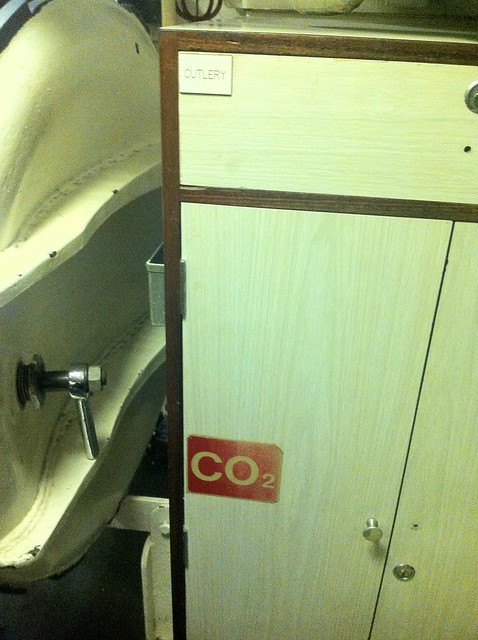
Despite having owned a year pass for the best part of a year, and frequently admired the Ocelot from the outside, this is the first time I've been aboard. The tour is short, cramped, and completely fascinating, although perhaps not for the squeamishly claustrophobic, and definitely not for the mobility impaired.
The Dockyards is a superb example of a modern lottery-assisted regeneration project. There's several large ships in dock you can wander around, huge warehouses full of boats and machinery to pore over, a ropery, an art gallery space, a working steam railway, several sub museums. Far more than you can do in a single visit, but your ticket, once purchased, is good for 12 months of repeat admission.
Fretboard Heatmaps : This is a really neat idea, although it's a pity it has so few artists.
Album Shuffle : I published my playlist generating python tool onto github
I'm not a very Windows-focused computer user. In fact I think the last era I used it really extensively, with any expertise, was in the 16-bit era of Windows 3.1 - 3.11. I quite liked those versions, which operated somewhat more like an integrated interface SDK for MS-DOS than an independent operating system. As the commercial internet boom took hold, and work became focused almost entirely on building web applications targetting UNIX-like deployment environments, (typically linux), I shifted over to working natively in that environment, and never looked back. So, I don't really know how to use modern Windows at all comfortably, and I don't have any personal ease when working with it's native interface.
Normal development tooling for me is a simple GUI windowing environment, running on Debian linux. I (still) use GNU emacs or increasingly zed for almost everything that isn't in a web browser, alongside a handful of running terminals, an email client, and some kind of file browser, and music player and that's about it. My development projects I tend to isolate into containers, using lxc/lxd and more lately, incus, to give me "lightweight" virtual hosts nested on my computer, connected with a virtual ethernet LAN. It effectively is a local 'cloud', offering dependency and process isolation for your work, and powerful features like snapshot/checkpointing, image templating. What I particularly like about the incus approach, compared say to other container systems, like docker, is the abstraction is well suited to longer-lived, stateful development systems - you partition one linux system into a few dozen smaller more specialised linux systems with the state hidden from each other. The unit of containment is 'operating system'. Whereas with docker-like containment, I think the unit of abstraction is something more like 'one process, with all of it's dependencies bundled', which makes more sense to me for one-shot tasks, or often as a deployment target.
Back in the 90s(!), when computers were a lot less powerful than they are today, I commonly used to use emacs 'tramp' or Ange-FTP modes, to develop remotely on a development or staging server, from a thinner client. Now I use the same approach, and the same tools, to develop on my container environments, effectively treating them like a 'remote' host, even though they're only conceptually remote. Tramp, just like most of emacs, is a kludgey wonder - it encodes the information about remote endpoints using pseudo-paths, like /ssh:user@host:/path/to/something , and emacs just works out how to edit your files. Under the hood, it strings together a glue of subprocesses and temporary file copies and the like, to take your editing and reflect it on the remote environment. And not just files. This is emacs! Almost everything in emacs works tramp-aware, so you can browse the remote filesystem using dired - launch processes for compilation or linting, use git workspaces with magit-mode, run interactive shells and debuggers, build and run your projects, it has extremely high levels of DWIM. The main price you pay is occasional latency, as things shuttle back and forth, or buffer in and out of pipes, but I’m very used to this. And compared with the days when I used to use tramp to work over dialup(!) links to servers, this modern container approach is practically turbo-charged. Eat my dust!
Zed simililarly offers remote editing using ssh connections, with a slightly different architecture. The zed remote feature is a little more modern, like VSCode - it downloads a headless install of the editor on the remote after you ssh to it, and then proxies to that backend using it's own protocols over ssh. The net effect is the same though, you work on your local keyboard screen and mouse, but your working environment is in the remote hosts. An advantage zed offers over tramp's elegant hackaround is that the latency is considerably reduced, it's not copying files backward and forwards and slowly lauching tasks in shells. A disadvantage zed offers, is that it's not emacs and it's tooling for lots of things (like git, or file browsing) are not as advanced or comprehensively scriptable. It's not uncommon for me to have both zed and emacs buffers attached to the same remote development context.
So, that's what development tends to look like to me. One or two graphical editors, on my main desktop. Many persistant projects mapped to running containers (and maybe remote hosts), with various different projects open in them for work. I get a persisting, consistent user interface over diverse projects, all of them in a full linux environment, each completely isolated from the others, but networked.
In my current job, we're using Windows, and the whole Microsoft business stack, and we have a IT managed network. It's a bit of a change from what I'm used to. But, unlike a lot of software developers, I've found that I like change! (Often, you learn stuff. So what have I learned?)
I've been issued with a pretty nice Microsoft Surface branded laptop. The hardware, at least, is nice (and higher spec than any of my own current computers). The software is, of course, Windows, which I remain suspicious of using. The surface runs it like a champ, of course.
Interestingly enough, modern Windows understands that the majority of software deployment is now to linux, or linux-like environments, and the developer tools include an integrated linux-based toolchain. It's called 'Windows subsystem for Linux' and it's on it's second major version - WSL-2. WSL-2 basically integrates a virtualized linux kernel running inside the windows enviroment, which can be used much as I've described my container approach above - you have a virtual linux host, with it's own filesystem and processes, and a convenient interface between this and the host system.
You can run your graphical applications, and even your IDE (Visual Studio Code, presumably :-)) , and browser (Edge, your AI-powered browser!) in your graphical desktop, and have a local 'server' for developoment. WSL integrates with Docker Desktop for Windows, allowing your docker containers to run natively in the linux environment, and you can even install and run multiple instances of WSL containers to have different isolated linux 'back-ends'. It's a compelling work narrative, but it is founded on the idea that your goal state is using Windows for all your user-facing software and interface. Howerver -- What if you don't want to?
Because the WSL environment is an optimised full linux VM, it seemed to me that I might even be able to treat the WSL environment like a remote linux system, and move my existing workflow over - use a linux desktop to remotely access a local linux "server", that just happens to be Windows, and run development inside there using my typical approach of multiple contexts isolated into separate system containers. That's more like my idea of best of both worlds - my work computer can be a locked down managed enterprise client, I can get good use from the fancy hardware, but still maintain the toolchains and client interfaces I'm most comfortable using. Assuming, of course, that I could get it all to work...
Well, it took a bit of fiddling, but I'm here to say it works, well! my Windows Laptop runs on my desk, my software projects run on it inside incus containers, and I access them from emacs or zed or terminal windows, on my ancient creaking linux desktop system. I can easily run as many of these containers as I can fit into my 24GB of WSL (actually quite a lot of headless containers, in my experience) - voila! My Windows laptop is now a cloud host provider!
Here's a detailed walkthrough of how I set it all up. Please note that you will need a local Windows admin account to make some of the necessary configuration changes to the Windows side of things, but aside from a couple of privileged config changes, all of this can be then run as a non-administrator user account, which is another great benefit.
(Because I set this up originally a year ago, my instructions are written from before Debian 13 was promoted to stable, which is why you'll see me using 'Bookworm' in a few places.)
Firstly, you need to install a WSL2 environment. I picked Debian (which is supported), and I initialised this. I then system upgraded the Debian installation from bookworm (12/old-stable) to trixie (13/testing) using apt, because incus is packaged as part of trixie. I was then able to install incus using apt, and follow the incus initialisation and setup instructions from the project configuration page. I quickly launched a couple of bare bones containers to check that things were working as expected.
incus and incus-admin groups (check this with the id command), you should just be able to run incus launch images:debian/12 - this should download a base debian image, and launch it with a generated container name. You can see it running with incus list , and launch a shell within it with incus shell <container-name> - Please read the lovely docs for more such hints, this post is not intended to be an incus user guide ;-)
The next thing I did was add some additional WSL configuration by creating a .wslconfig file in my User home directory on Windows - this is a plain text ini file. I was pleased to find that Notepad.exe still exists in 2024, and can be used to create this file :-)
  [wsl2]
  memory = 24G
  nestedVirtualization = true
  networkingMode = "mirrored"
this is relatively self-explanatory - I'm giving most of my 32GB of RAM to the linux VM (because i'm not really using the windows side), I'm enabling nestedVirtualization, although I don't think this is a prequisite for running incus containers, it sounds like something I'll probably use at some point. Finally, and most importantly for this case, I'm setting the networkingMode up to use 'mirrored' networking mode - this replicates the windows networking devices and configuration inside the linux VM, meaning we can connect directly to the linux system from the network, without having to set up port forwarding or anything like this.
Once you've created the file you need to restart WSL in order for it to take effect. The easiest way to check if it's working is to look at your available system RAM in linux using free - it have changed to be 24GB. The next stage is to setup windows to allow client connections from the LAN.
We also want to be able to connect to our virtual linux box conveniently from the LAN. This requires a few things. Firstly, we need a stable network address or name. Secondly, we need to allow incoming network connections. This part requires enough Admin privileges on the Windows host to change networking settings.
I redefined the network adapter settings in Windows to use a static IP for this LAN, and added a DNS name for it in my local resolver. I set this network configuration up as a 'Private' network profile. The next step is then to configure the Hyper-V firewall on windows to allow incoming connections to pass to the VM. Running a powershell window as admin, I added firewall rules to allow this for the private network profile. In this way, I can ensure that the host is only accesible like this on trusted networks.
The WSL vm has a fixed identity string (the VMCreatorId) , a GUID, which is 40E0AC32-46A5-438A-A0B2-2B479E8F2E90, so the command you need is something like
Set-NetFireWallHyperVProfile -Profile Private -name '{40E0AC32-46A5-438A-A0B2-2B479E8F2E90}' DefaultInboundAction Allow Now incoming connections on the windows IP interface will be receivable in the WSL VM. Enable sshd on the WSL environment, and then check that you can ssh to the network address. You should get a login inside the WSL environment. If you run incus list here, you should see any running incus instances.
You can now access incus containers on the WSL instance from a remote emacs, if you use the incus-tramp method, and tramp pipelining. Access a path like /ssh:[email protected]|incus:me@container-name:/path/to/project in emacs and everything should be there. Relying on additional tramp stages for proxy chaining, although it's a very neat trick, can bring problems with performance, and reliability, and it is more simple to push the extra hops into the ssh layer.
This involves a bit of glue code, which looks hideous, but works very well.
Setup 'Control Master' for ssh, which allows repeated ssh connections to the same host to re-use an established ssh session. This will speed up the time taken to open new sessions, and noticeably improve the responsiveness of tramp for ssh remotes. Secondarily, use a ProxyCommand directive to connect a single ssh connection to a proxy session. Finally, you can use wildcard rules with a host suffix matching a certain host pattern straight through into an incus container on a specific host. Here's the relevant entries from my ~/.ssh/config
  Host *.wsl
       ProxyCommand ssh my.windows.box incus exec $(echo %h | sed 's/.wsl//') --user 1000 -- /usr/bin/nc -q0 localhost 22
       ForwardAgent yes
  Host *
      ControlPath ~/.ssh/master-%h:%p
      ControlMaster auto
      ControlPersist 10m
In ssh configuration files, the first applicable setting is the one that will be used, so we should order the file from most specific towards most general.
Here, we're using a fake 'domain' of .wsl, and then converting the command to an ssh to the windows host, that immediately launches incus, getting the container name by chopping off the '.wsl' from the provided hostname and running 'netcat' in the container to proxy our ssh session to the ssh server inside the container. With this little piece of ugly glue, we can run ssh container-name.wsl and immediately get an ssh session directly into the running container called container-name
The control master block ensures that we re-use an established ssh control session for all connections to the same host, and persist it for 10minutes after the last connection exits, to improve reconnection times.
With this piece in place, we can access files, shells, and processes from emacs buffers, using a tramp path of /ssh:my-container.wsl:/path/to/project - or laucnch a zed session in a remote project directory, using their ssh 'remote project' feature.
The main, and perhaps the only real downside of this approach is that Windows likes to restart, often. Usually in batches once or twice a week. This is a combination of updates from remote IT and Microsoft I suppose. Rather than get too aggravated about it, I prefer to think of it as a free chaos monkey.
I can alleviate most of the pain points by making everything as restart-able as possible. WSL can be set to start as soon as you login by tweaking a few settings in the cmd.exe application
cmd to start on loginThis means that after a boot all I have to do is login to resume the WSL state
incus configThe local "staging" version of any webservices I am working with I typically run in Docker , inside the inucs container (as my user account) - i usually write a shell script to launch docker with the right port forwarding and data persistence flags for whatever I want to be running (for more complex setups this could be a docker compose configuration) - I simply put this shell script into my user crontab, using the magic @reboot trigger directive to launch this script after multi-user init, as me, with just a one-liner.
with these configurations in place, all I need do is login to Windows (with my face 😘) to resume running services where I left them.
If you have a Mac, and you use Terminal.app to run UNIX commands, try executing this for a cool shell prompt
export PS1="\360\237\220\232 $ "
See what I did there?
If you are using a UTF-8 encoding for your terminal, which you probably are, and if you're using a recent OS X, and have the right fonts installed, which you probably do, you should have a little sea-shell graphic for your prompt. Literally a cool shell prompt.

In a recent revision to Unicode , code points were assigned for many emoji. Emoji-what-now? These are little emoticon glyphs that rose to popularity in Japan . Apple have included a nice typeface with full colour icons for a subset of these in the last couple of releases of both iOS and OS X, so you can use them in most applications that use the system type rendering library, like Messages. On OS X, this includes the bundled Terminal.app terminal emulator. So you can print little icons in your shell, if you know an encoding for a particular glyph.
Here's the ever popular 'pile of poo' ( U+1F4A9 )

Not sure what that is supposed to be used for, but it's terribly popular on the internet. "But how", I hear you ask, "do you find out the encoding sequences for these appealing novelties?"
Well, you can search for unicode code tables on the internet. On the Mac though, the easiest thing to do is probably to enable the Character Viewer tool via the Language and Text System preference pane.

This gets you a panel like this, where you can browse all the characters your computer knows how to render, including all the emoji sets, and find out their Unicode code points, and more importantly, a way to encode that code point in UTF-8.

So, as you can see in my fecal example, the UTF-8 byte sequence for 'pile of poo' ( U+1F4A9 ) is F0 9F 92 A9, and we can print that in a bash shell, using echo with the -e flag to enable interpreting of escape sequences, using the \x escape prefix to indicate bytes in hex.
Going back to the original shell trick, the shell emoji ( U+1F41A ) has the UTF-8 encoding F0 9F 90 9A. The bash shell doesn't seem to have an escape sequence for hex encoded bytes in it's prompt string, but it does interpret 3 digit codes prefixed with a plain \ as octal encoded literal bytes, so if we convert this hex string to four octal numbers, using bc or od, or emacs or just Calulator.app, we get the escape sequence from my initial shell example - "\360\237\220\232"
So far so cute. But is there anything vaguely useful you can do with this sort of thing? Sort of. A picture's worth a thousand words. So we could perhaps encode mnemonic information in icons, and somehow dynamically update the prompt to reflect this.
Bash will execute the contents of an environment variable PROMPT_COMMAND as a shell command immediately before the shell prompt is printed. Typically this is used to update terminal colours or title strings with escape sequences, or update PS1 to add some content that can't be printed using the built-in prompt escape functions. I decided to make my prompt respond to the result of my most recent command.
Here's the relevant shell glue I just stuck in my .bashrc
emoji ()
export PROMPT_COMMAND='PS1=$(emoji $?)'
This runs a shell function called emoji in a subshell, which returns a string based on the input argument. The input argument I'm using is the exit status of the last shell command. This gets me a smiley face in my shell prompt, unless the last command I ran returned a non-zero exit state, which in UNIX, indicates a problem happened. This makes my prompt draw as a 'confused smiley', if something has gone wrong.

Still cute, and almost useful!
I think I'll keep it for a while.
-AppleLanguages : Overload the locale for cocoa programs at the command line.
Every HN Thread, ever : It's a particular flavour of Eternal September over there.
For the past year and a bit, I've been relying on a one-user GoTosocial server for my fediverse participation. Fediverse is the 'well, actually' technically correct name for the social network protocols that power an overlapping set of free, distributed social networks that a lot of people just call 'Mastodon'. Mastodon is the largest and most popular server software used in this network, and got a significant bump in popularity when that crazy space junkie guy started hacking on twitter.
Mastodon is a large Ruby on Rails project, with the typical kind of architecture you might expect from a classic LAMP-adjacent dynamic web thing that's used in production to run instances with thousands and thousands of active posting user accounts, and a hefty server footprint.
Gotosocial is a fediverse server that specifically targets a lower footprint installation. It's written in Go, which while not being the kewlest platform to build a modern web server application in, is to my eyes, a pleasingly pragmatic choice. (Something I often like to say is 'Go is actually kind of a DSL for building small network servers in'). It also targets full mastodon compatibility, so it's a drop in replacement for a mastondon account, and much simpler to run if you were interested in having your own fediverse service.
Whilst Gotosocial has a modest footprint, and a few moving parts, it's not without some interesting technical architectural decisions. In one of its simpler installable forms, rather than use an external relational database like PostgreSQL, it just uses good old SQLite3 😍 - and rather than pay the CGO / boundary penalties for linking directly into SQLite as a shared library, it can actually run SQLite as a contained WASM process inside the go application, using the Wazero runtime
I adore everything about this approach, it's exactly the kind of mad science I'd try to get a simpler working service. End result is you have a single static binary that you can run and install, and it manages its own fully compatible SQlite3 database store in-process, without any install-or-link-time dependencies.
So it's super simple to install for me on linux, I simply need to unpack a binary linux release tarball and then launch the newer binary with the old database file. Gotosocial applies database migrations on startup.
Here's their offical upgrade instructions taken from codeberg for the binary release
It's about as simple as a manual upgrade can be.
Well, aside from scripting it, I think there's one small improvement that can be made. So far as I know, GoToSocial doesn't (yet?) run auto vacuum on its SQlite database. VACUUM on SQLite is a necessary maintenance procedure that's used to refresh, compact and optimize the database backing store after it's been amended in use for some time. You can think of it a bit like a 'defrag' or a 'garbage collecter' for your database.
Without auto-vacuum, vacuum is necessarily a blocking operation, you will block all other database changes until the vacuum is done. As such it's ideal for downtime. So vacuuming your GoToSocial database when you upgrade is a good idea, although it does extend your service downtime by a couple of minutes.
So, as well as copy your database to a backup, I suggest you also connect to it, with the sqlite3 command and run a complete VACUUM. But wait, we can be even cleverer.
Vacuum already makes a complete copy of the database. Go back and read the VACUUM documentation I linked above. You might also notice that SQLite VACUUM supports a 'VACUUM INTO' form, which materializes this vacuum copy information into a fresh database file.
so my amended system upgrade is like this, pretending for the sake of example that it's a manual process.
/gotosocialsystemctl stop gotosocialgotosocial binary to a versioned backupgotosocial.sqlite to a versioned backup name e.g. gotosocial.backup.sqlitesqlite3 ./gotosocial.backup.sqlite commandVACUUM INTO 'gotosocial.sqlite' (i.e. re-creating an optimised gotosocial database)systemctl start gotosocialjournalctl -f -u gotosocialI'm experimenting with desktop email clients again.
I like Apple Mail a lot, it's one of my favourite examples of GUI desktop application, but the last couple of iterations have made it a little more clumsy to use with keyboard navigation, and it doesn't scale terribly well to managing multiple, high-volume IMAP accounts. Particularly, I find refiling groups of similar emails to be more labour intensive than this task would seem to require. By means of contrast I love refiling mail on my iPhone using Apple Mail for iOS, in truth I love using Mail on my iPhone for any mail task way more than I'd expect, it's insanely usable for an email client on a tiny, squeezable hand-toy.
The real impetus for investigating a desktop alternative has come from our recent switch to using GMail for our corporate mail service at work. I hate google mail's not-quite-IMAP IMAP implementation, I hate it's sluggish IMAP performance through Mail.app, and I hate hate hate it's god-awful webmail interface. So I've been putting some thought into rethinking the way I process email. Naturally my first line of attack is to retreat to emacs .
I've used emacs for mail before, on and off. When I first switched to using linux for my desktop systems, way back in the 90s, I used gnus on emacs for mail for a while, then when I made the switch to XEmacs for a couple of years I discovered VM , which was my main INBOX on and off, following me back to GNU Emacs, with occasional experiments with Netscape Navigator , and Evolution up until I switched to a Mac full-time, around 2001. I do recall trying Thunderbird a couple of times, but I could never tolerate it for much longer than a half-hour. I also used Wanderlust for emacs for a few months when I first started working at last.fm, but I switched to using a Mac at work shortly after that, and added my work email to my Apple Mail setup.
This time around I'm trying to re-organise the way I approach mail fundamentally. A few years ago, I started deleting mail after I'd read it, unless I definitely felt it warranted keeping. I really liked the feeling of freedom that seemed to open up, releasing me from worrying about tidy filing of hierarchical mail archives that always needed archiving and backing up. Inspired by GMail's approach to tagging and searching, the mail I did keep I filed into a small set of IMAP buckets and indexed them in Apple Mail with labels and "smart folder" searches. So I'm trying to push that even further, and I'm trialling mu , a decidedly minimalist interface to email.
mu works over a local mail store, ideally Maildir . So I've started syncing my work GMail account to my laptop, using the mature, Free software syncing tool offlineimap ( I installed it from macports ). offlineimap has specific GMail support, and it's super-easy to set this up to sync to a GMail account, although I had to add a
 folderfilter =
  lambda foldername: foldername not in ['[Gmail]/All Mail']
to the account configuration in ~/.offlineimaprc to stop it syncing the Gmail "All Mail" filter as an IMAP folder, meaning I had 2 copies of every email going down. I set up a User launch agent via launchd to run offlineimap every 5 minutes, syncing to ~/Library/OfflineIMAP/lastfm/
Once the mail was syncing both ways, I ran
MAILDIR=~/Library/OfflineIMAP/lastfm/ mu index
to initialise the mu indexes. I can now explore the mail archive from the shell using commands like
mu find from:jira date:2w..today
which would return a summary list of emails matching the search criteria (i.e. all mail sent from JIRA in the last 2 weeks). mu is based on the xapian indexer library, and these queries run lightning-quick. The indexing process is thus entirely separate from the imap sync, and the indexes need to be updated by re-executing the 'mu index' command to keep them fresh. This takes fractions of a second after the original indexes are built.
I'm not really interested in running searches from the shell though. mu is really an archive browser ; ideal for integrating with other mail reading and sending utilities. mu ships with a nice keyboard friendly emacs interface called mu4e . mu4e offers quick navigation short cuts to browse IMAP folders, a simple syntax to mu searches, and a list of bookmarked searches, much like virtual folders. mu4e can be set to periodically update the mu index, and even run a Maildir sync, such as offlineimap. Here's the config elisp block from my startup files.
 (setq-default
  mu4e-maildir "~/Library/OfflineIMAP/lastfm"
  mu4e-drafts-folder "/Drafts"
  mu4e-trash-folder "/Deleted Messages"
  mu4e-sent-folder "/Sent Messages"
  mu4e-refile-folder "/Archive"
  mu4e-mu-binary "/usr/local/bin/mu"
  mu4e-sent-messages-behavior 'delete
  mu4e-get-mail-command "true"
  mu4e-update-interval 300)
all of which is quite straightforward. The root of the various folder paths is the top level Maildir. mu4e-sent-messages-behaviour is set to the symbol delete, which is recommended for GMail accounts, as GMail auto populates one of it's magical pretend folders with all sent messages. I have set mu4e-get-mail-command to true because I prefer to have the Maildir synced via my launch agent, independently from emacs.
There's a very nice mu4e manual which documents the package in detail, I haven't managed to work through it all yet. So far I'm managing quite well with manual searches, and the default set of keybindings and stored bookmarks. List view management follows the usual emacs semantics of building up 'marks' on list entries and then applying the actions in bulk, familiar to habituated emacs users from org-mode , wanderlust, dired etc.
The mail and editing and sending is borrowed from the usual emacs GNUS / smtpmail combination, which is fine, as these work perfectly well.
I've found only one tricksy wrinkle; mu4e, like any sensible thing expects email to be in plain text. If the viewer is summoned on a rich text ( usually HTML ) mail, it tries to convert it to plain text for viewing. By default is set up to use emacs built in html2text method, which frankly sucks, and failed to convert the majority of HTML mail in my INBOX. mu4e has a configuration variable mu4e-html2text-command option to use an external conversion command. This should be a utility that accepts HTML input on stdin, and returns converted text on stdout. The manual suggests using the python-html2text utilities, but I think on a Mac it makes more sense to use the mildly obscure, but occasionally useful, Apple provided shell tool - textutil
It needs to be invoked like this to work with mu4e.
  (setq mu4e-html2text-command
  "textutil -stdin -format html -convert txt -stdout")
And with that, everything works great. I'm going to try living with it for a few weeks before I customise it further, but I'm looking forwards to setting up Wanderlust-style dynamic refiles, and integrating crypto support, so I can return to GPG encrypting and signing my mail again, like I ought to, at my age. Never forgetting, of course, cms 1st law of software :- "All mail clients suck, intrinsically"
Raspberry Pi Radio : Official last.fm scrobbler build for Raspberry Pi/Raspbian